Showing posts with label reporting. Show all posts

Tuesday, April 15, 2008

Commenting on your report data


Sometimes users ask me if it's possible to add comments to their report data, in order to clarify its status. Just as simple as possible, without having to use another application.

Using Cognos BI, this certainly is possible. In this post I want to show you a technique I have developed using the Great Outdoors demo environment.

In summary these are the steps, implementing a commentary update application:
1. In the database, create a Stored Procedure, allowing you to update the comment column in a table record.
2. In the Cognos Framework, create a Query Subject using this stored procedure.
3. Create a prompt report prompting for the comment in a prompt page, and showing the modified comment in the report page.
4. In the list report, add a drill through to the prompt report, passing the selection values.


1. Stored procedure

The stored procedure could look like this:
CREATE PROCEDURE SalesTargetCommentAdd @intYear smallint, @strPRODUCT nvarchar (50), @strComment nvarchar(2048)

AS

IF rtrim(@strComment) = ''
UPDATE SALES_TARGET_COMMENT
SET Comment = NULL
WHERE [YEAR]=@intYear and PRODUCT=@strPRODUCT
ELSE
IF EXISTS (SELECT * FROM SALES_TARGET_COMMENT WHERE [YEAR]=@intYear and PRODUCT=@strPRODUCT)
UPDATE SALES_TARGET_COMMENT
SET Comment = @strComment
WHERE [YEAR]=@intYear and PRODUCT=@strPRODUCT
ELSE
INSERT INTO SALES_TARGET_COMMENT ([YEAR], PRODUCT, COMMENT)
VALUES (@intYear, @strPRODUCT, @strComment)

SELECT [YEAR], PRODUCT, Comment
FROM SALES_TARGET_COMMENT
WHERE [YEAR]=@intYear and PRODUCT=@strPRODUCT
GO


Mind that the database user used in the Cognos data store Connection must have execute privilege on the stored procedure and update privilege on the table!

2. Framework Manager Query Subject

The Framework Manager Query Subject contains the store procedure and the parameters:


3. The prompt report

The prompt report shows in the prompt page the current comment (using a normal query subject) and prompts for the new comment using a textbox prompt object:


The report page shows the comment item from the stored procedure query subject:


The HTML item has this a-tag code to close the window on click:
href="javascript: self.close ()"


4. The list report

The list report shows data from the normal query subject and contains a text item object called "update" in the list frame next to the comment item, with a drill down to the prompt report:


Tuesday, January 30, 2007

Implementing a navigation path

The Dashboard application, as of I blogged before, contains a navigation path ('kruimelpad' in Dutch).

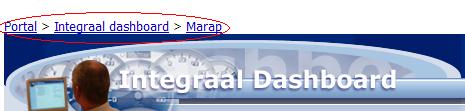
The navigation path is a series of one or more hyperlinks showing the path of reports a user has run from the Portal via the Dashboard down to the Monthly reports ('Marap') and the Trend graph reports.

The path is presented as one line in the top of the report and looks like this:


Each hyperlink in the navigation path consists of an HTML item object in the report. The '>' signs are just text item objects.

The HTML item contains an anchor tag calling the browser's page history and skipping a number of pages back.

For instance the link to 'Marap' looks like this, calling the history two pages back (-2):

<a href="#" onclick="history.go(-2);return false;">Marap</a>

Why two pages back and not one? Well, when Cognos executes a report, it will show an intermediate page "Your report is running." as long as the report is not ready and you're waiting for it. This page needs to be skipped when navigating back, so I don't go back one page but two.

In case of the prior run reports 'Integraal dashboard' and 'Portal', the same code is used, but instead of -2, the number of pages back is -4 and -6 respectively.

The main drawback of this technique is that Cognos does not show this page when the report can be run very quickly, so in that case the history call should be only one page back. For this potential issue, I have not found a solution yet.

I don't want the report to be re-run, as this is not user friendly in my opinion. By the way, a re-execution of the prior report would be possible using the following code:

<script language="javascript">
function exit()
{
document.formWarpRequest.method.value = 'release';
document.formWarpRequest.m.value = 'portal/report-viewer-release.xts';
setTimeout("document.formWarpRequest.submit()", 1);
}
</script>
<a class="ccOptions" href="javascript:exit()">Marap</a>

If someone knows of a way to elimininate the intermediate "Your report is running." page, please let me know! Cognos offers no solution for this as fas as I know.

Monday, January 29, 2007

How to automatically select the first prompt value

In the dashboard application I blogged about in the previous post, I now have added a prompt in the main portal report page showing the current period. When a new year arrives, the users often don't just want to see the few actual details if the new year, but also want to look back into the details of last year. This requirement calls for a prompted list of values.

Here is a screenshot of the actual prompt (red circle). The first value ('2007 t/m januari') is automatically selected. Mind there is NO prompt page! This is the first 'report' page that is presented to the user.


In Cognos it is possible to provide a Default Selection but this contains a list of static values. I cannot use this a each month there is another first value to be selected. So what I've created is a Value Prompt object presenting its values by a query with Use Values and Display Values, and have added an HTML item with a piece of JavaScript that selects the first value. The HTML item is added just after the Value Prompt object.

The JavaScript code in the HTML items looks like this:

<script type="text/javascript">
function init()
{

if

(document.formWarpRequest._oLstChoicesPeriode.options[3].selected == false)

{

if

(document.formWarpRequest._oLstChoicesPeriode.options[2].selected == false)

{

document.formWarpRequest._oLstChoicesPeriode.options[2].selected = true;

listBoxPeriode.autoSubmit();

}

}
}
</script>
<body onLoad=init()>


The first value to be selected in the list is actually the second value in the list object, which JavaScript sees as a list of three values in total. If no value is selected initially (third and second selections are false), the second value is selected by the script.

Tip: Did you know that the Cognos role "Consumers" needs to be given read permission to the Report Studio capability "HTML Items in Report" in order to get HTML item objects working in reports for Consumers? Please mind this and check the Tools > Capabilities in Cognos Connection!